Coraza WAF rules
Requires WHP super admin access. These features are unlocked for customers with a WHP super admin role on the server — for example, anyone running a Virtual Dedicated Server. Customers without super admin won’t see these pages.
Coraza is an open-source web-application firewall (WAF) that runs as a sidecar in front of your sites. The Coraza Rules page in the admin sidebar gives you a UI to set the global mode, tune individual rules, and audit blocked requests — all without rebuilding the sidecar image.
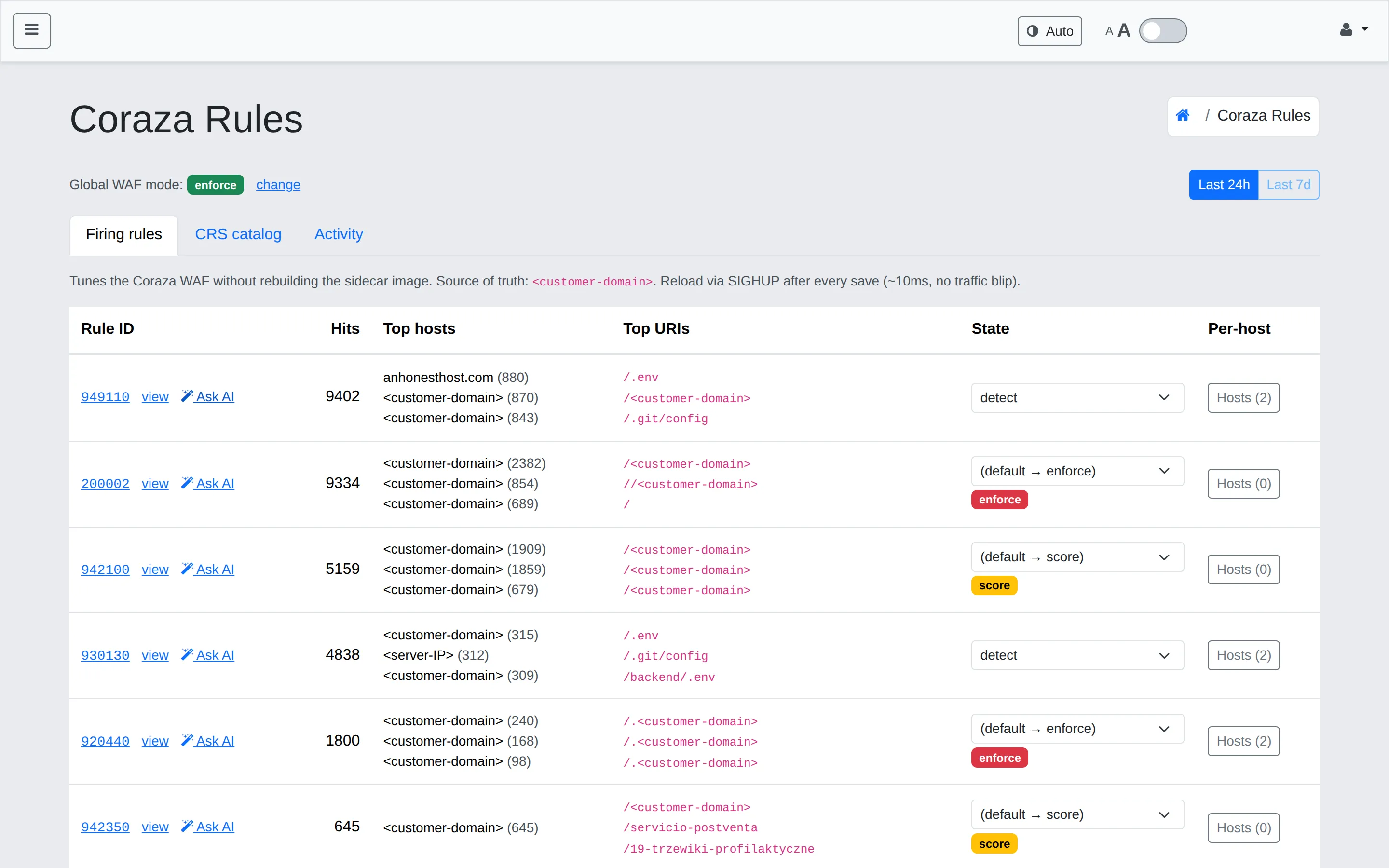
Global WAF mode
Section titled “Global WAF mode”A coloured pill at the top of the page shows the Global WAF mode with a change link:
- Off — no inspection. Requests pass untouched.
- Detect — inspect and log matches; do not block. Use during a roll-out or while validating a rule change.
- Enforce — inspect and block anything that matches an enforcing rule.
The WAF is fail-open: if the Coraza sidecar is itself unhealthy, traffic still flows.
Sign in as super admin
Section titled “Sign in as super admin”Super admin access is granted to the root user only. Sign in directly at https://<your-server-hostname>:8443 with the root credentials.
The WHMCS client portal route doesn’t apply for super admin — it signs you in as the linked customer, not as root.
The three tabs
Section titled “The three tabs”Firing rules
Section titled “Firing rules”The default view. Each row is a rule that has matched at least one request in the selected time window (toggle Last 24h or Last 7d at top right).
Columns:
- Rule ID — the CRS or custom rule identifier. view opens the rule definition. Ask AI opens an explanation of what this rule catches.
- Hits — how many times the rule fired in the time window.
- Top hosts — the top customer domains that triggered this rule (with per-host hit counts).
- Top URIs — the most common request paths that triggered it (helpful for distinguishing scans from real traffic).
- State — per-rule override of the global mode. Options:
(default → enforce),(default → detect),(default → score),off. Picking anything other than(default → …)overrides the global mode for that rule. - Per-host — opens a Hosts (N) drawer to set per-host overrides for that rule.
CRS catalog
Section titled “CRS catalog”The full OWASP Core Rule Set catalogue (v4 families: 901, 905, 911, 913, 920–922, 930–934, 941–944, 949, 950–956, 959, 980). Use this when you want to look up a rule that hasn’t fired yet — for example, to pre-mute a rule you know will produce false positives on a specific app.
Activity
Section titled “Activity”A timeline / log of every WAF block in the audit window. Use it to:
- Confirm a customer report (cross-reference the X-Request-Reference UUID on the visitor-facing 403 page).
- Spot bursts of activity from the same source IP.
- Tune source-of-truth back-end queries — the audit is read from
security.db.
Common tasks
Section titled “Common tasks”Roll a new site onto the WAF
Section titled “Roll a new site onto the WAF”- Set the rule’s State to
(default → detect)for that site via the Per-host drawer. - Drive normal traffic for at least 24 hours.
- Open the Activity tab and filter to that host. Confirm no legitimate request is matching an enforcing rule.
- Flip the host to enforce.
Mute a noisy rule
Section titled “Mute a noisy rule”- Find the rule in Firing rules.
- Click Per-host → Hosts (N) to add a per-site mute, OR change the rule’s State column to mute it globally.
Prefer per-host. Global mute weakens the WAF for every site.
Audit a block
Section titled “Audit a block”Customer reports a request was wrongly blocked? The branded 403 page includes an X-Request-Reference UUID. Cross-reference it:
- In the Activity tab, search for the UUID.
- The row shows the matched rule ID, source IP, URL, and offending parameter.
- Decide whether to mute the rule (see above) or leave it — many “false positives” turn out to be real attempts.
Implementation notes
Section titled “Implementation notes”- Source of truth:
security.db. All rule edits go through the panel and write to that SQLite file; manual file edits won’t survive a regeneration. - Reload mechanism. Rule edits apply via SIGHUP to
coraza-spoa; adding or removing whole rule files requires a full container restart, which the panel performs when the change needs it. - Real source IPs are in the audit log — even with HAProxy in front of the WAF, the real client IP is propagated through the SPOE messages.
Troubleshooting
Section titled “Troubleshooting”A rule shows enabled but doesn’t fire. Check that the host is in detect or enforce mode. A host in off bypasses every rule.
The Activity log is empty. Confirm coraza-spoa is healthy on the Services tab of Server Settings. If it’s restarting in a loop, check the container logs — usually a malformed rule file or a missing include.
Edits revert on restart. Make sure you’re editing through the panel; manual edits outside the panel-managed path are overwritten.
Related
Section titled “Related”Still stuck?
Section titled “Still stuck?”Still stuck? Open a support ticket and our team will help.