Users & delegated access
Requires WHP super admin access. These features are unlocked for customers with a WHP super admin role on the server — for example, anyone running a Virtual Dedicated Server. Customers without super admin won’t see these pages.
Four admin pages collectively control who can sign in and what they can do on the server:
- User Management — create / change-password / delete WHP users.
- User Resources — set CPU / RAM / disk allowances per user.
- Delegated Users — list of contractor / sub-account grants on customer sites.
- Account Suspensions — suspended accounts.
Sign in as super admin
Section titled “Sign in as super admin”Super admin access is granted to the root user only. Sign in directly at https://<your-server-hostname>:8443 with the root credentials.
The WHMCS client portal route doesn’t apply for super admin — it signs you in as the linked customer, not as root.
User Management
Section titled “User Management”Sidebar → User Management.
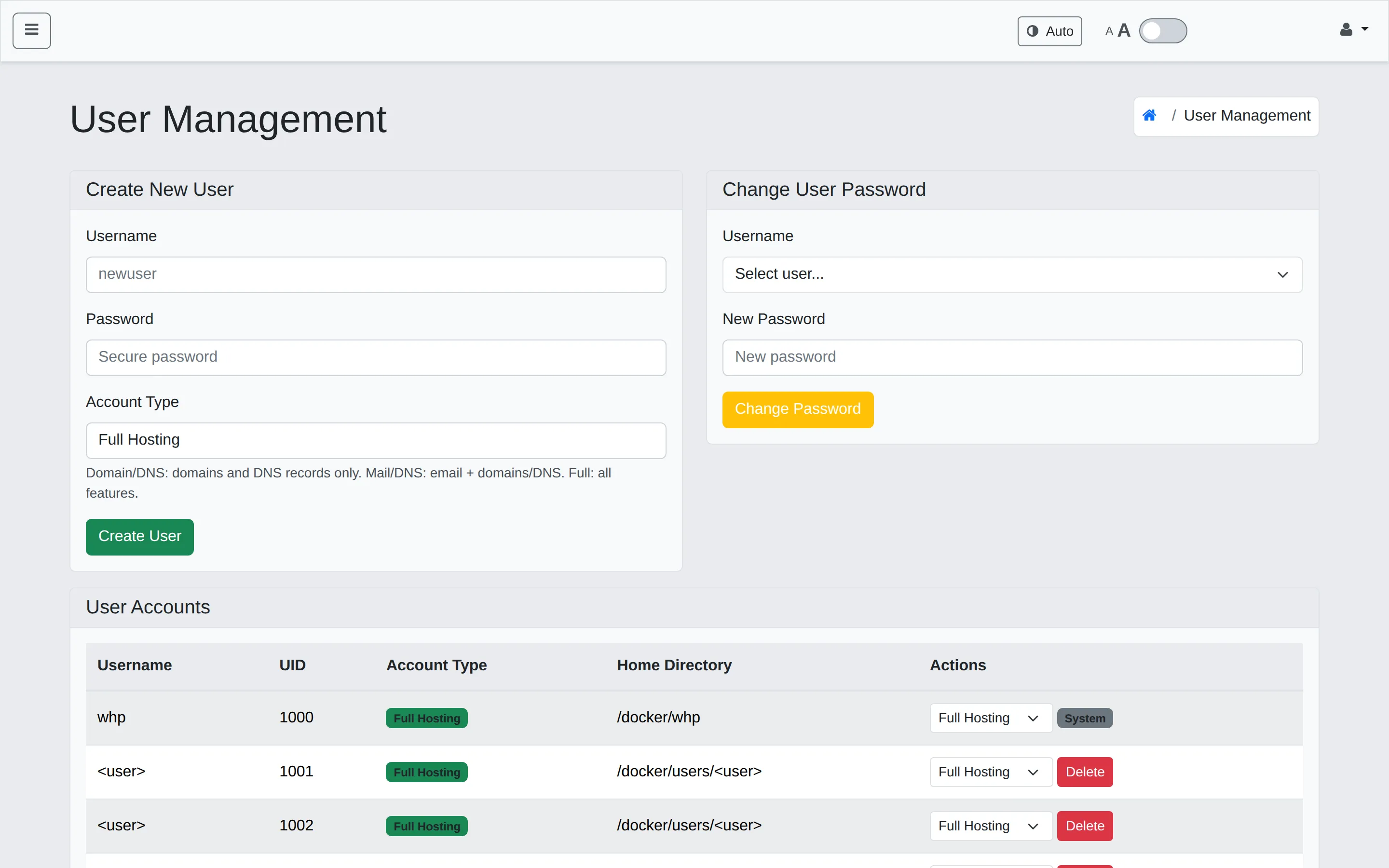
Create New User
Section titled “Create New User”Every user created here is a customer account, not a super admin. (Super admin is the root user on the server, and there’s no UI to add another.)
Fields:
- Username — UNIX-safe username; also becomes the SFTP user and home-directory name (
/docker/users/<username>). - Password — strong password. The user can change it later from the panel.
- Account Type — pick the scope of features this customer should see:
- Full Hosting — sites, databases, domains, DNS, email. The default for normal customers.
- Domain/DNS Only — domains and DNS records only (no sites, databases, or email).
- Mail/DNS Only — email plus domains/DNS (no sites or databases).
Click Create User to provision the account. The user’s home directory and SFTP credentials are set up immediately.
Change User Password
Section titled “Change User Password”Pick the user from the dropdown, enter a new password, click Change Password. The user is forced to sign in again on next visit; any in-flight panel sessions are still live until you also revoke them via Active Sessions.
User Accounts table
Section titled “User Accounts table”Columns: Username, UID (UNIX uid), Account Type, Home Directory, Actions (Account-Type dropdown + Delete).
To change a user’s account type, change the dropdown in the row and the change applies immediately. The System badge on a row marks an internal/system user (such as root, whp, daemon, www-data, nobody, the various systemd-* users, etc.).
System users are protected. The panel refuses to delete any user on the protected list — delete_user in web-files/libs/usermgmt.php checks is_protected_user($username) first and returns “Cannot delete protected system user” without touching the OS user. Password changes are blocked the same way, with one exception: root’s password can be changed (the rest of the protected list cannot).
User Resources
Section titled “User Resources”Sidebar → User Resources. Configure CPU and memory allowances per user.
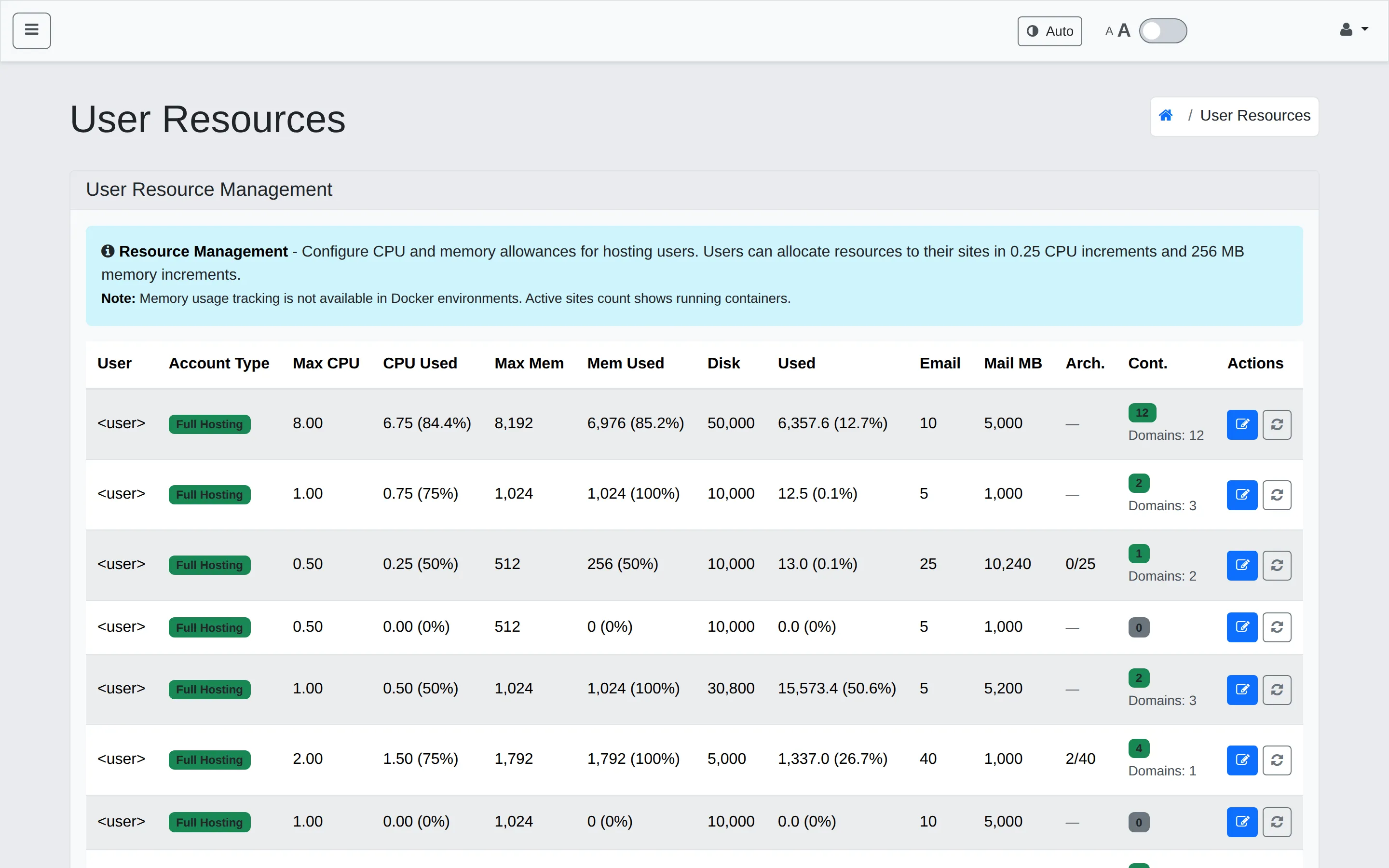
Each row shows current allocation vs. usage:
- Max CPU / CPU Used — in 0.25-core increments.
- Max Mem / Mem Used — in 256 MB increments.
- Disk / Used — total disk allocation and current consumption (with %).
- Email — mailbox slot count.
- Mail MB — total mail storage cap.
- Arch. — archival email slots used / total.
- Cont. — currently-running container count.
Use the Actions column to edit a user’s caps. Changes apply on the next container restart for that user’s sites.
Delegated Users
Section titled “Delegated Users”Sidebar → Delegated Users. Customers can use the Delegated Users page on their own account to grant a contractor scoped access to one of their sites. The admin view shows every active delegation across the server.
From the admin view you can:
- Audit — see who has cross-account access at a glance.
- Edit — modify scope, permissions, or expiry on any delegation for an independent customer. Useful when a customer asks support to fix a grant they set up incorrectly.
- Revoke — remove a delegation outright.
If a customer reports a delegation issue, this page is where you confirm the grant exists, inspect its scope, and adjust it on their behalf.
Account Suspensions
Section titled “Account Suspensions”Sidebar → Account Suspensions. The list of suspended customer accounts.
A suspension takes a customer’s sites offline without deleting any data — the customer can be reinstated by removing the suspension. Useful for non-payment, terms-of-service issues, or maintenance hold.
The page lists who’s suspended, when, by whom, and why. Reinstate from the action button on each row.
How the suspension page is served
Section titled “How the suspension page is served”The “site suspended” page is served by HAProxy itself, not by a separate backend. When you suspend an account, WHP rewrites the HAProxy config to point that account’s frontends at a 503 errorfile (/usr/local/etc/haproxy/errors/503.http) and reloads HAProxy.
If a suspended site is still serving the real content (or is throwing a network error instead of the suspended page), it almost always means HAProxy didn’t pick up the config reload. Check, in order:
- HAProxy container is running. Server Settings → Services → Docker Container Management → confirm
Haproxy managershows Running. - HAProxy reload succeeded. Either re-trigger from Server Settings → Network & SSL → Reload Configuration, or check the HAProxy container logs (
docker logs haproxy-manager) for a reload error — usually a syntax error in the generated config from the suspension action. - Errorfile is in place. The 503 page lives at
/usr/local/etc/haproxy/errors/503.httpinside the container.
Active Sessions
Section titled “Active Sessions”Sidebar → Active Sessions. Every active panel session across the server, with last activity time, IP, and a Terminate button. Use this when offboarding someone — kick them out of any active sessions first, then change their password or delete the user.
When someone leaves your team
Section titled “When someone leaves your team”- Revoke active sessions for that user via Active Sessions.
- Change their password in User Management (locks them out even if they save their cookies).
- Downgrade or delete the user in User Management.
- Audit Delegated Users for any cross-account delegations that should also be revoked.
Troubleshooting
Section titled “Troubleshooting”“Cannot delete protected system user”. Expected — system users (root, daemon, www-data, mail, the systemd-* users, etc.) are blocked at the panel level to prevent breaking the host. If you really need to remove a user, confirm it’s a customer account first.
Created user can’t sign in. Confirm the password meets the strength rules. If the user is signing in for the first time, they may be hitting the password-change-on-first-login flow.
Suspended customer’s sites are still serving real traffic. The suspension page is served by HAProxy — see “How the suspension page is served” above. Most often it’s an HAProxy reload that didn’t happen; check the container logs.
Related
Section titled “Related”- Server settings & services — including the suspension backend service.
- AI Monitor, Issues & Ignore Rules
Still stuck?
Section titled “Still stuck?”Still stuck? Open a support ticket and our team will help.