Blocks & pages
Beta feature. Site Builder is in active development. Some controls are still being refined and templates are being expanded. We’d love your feedback — use the Submit feedback link in the Site Builder header.
The block library
Section titled “The block library”The Blocks panel on the left of the editor groups every available content block into five collapsible categories. Drag any block onto the canvas to add it.
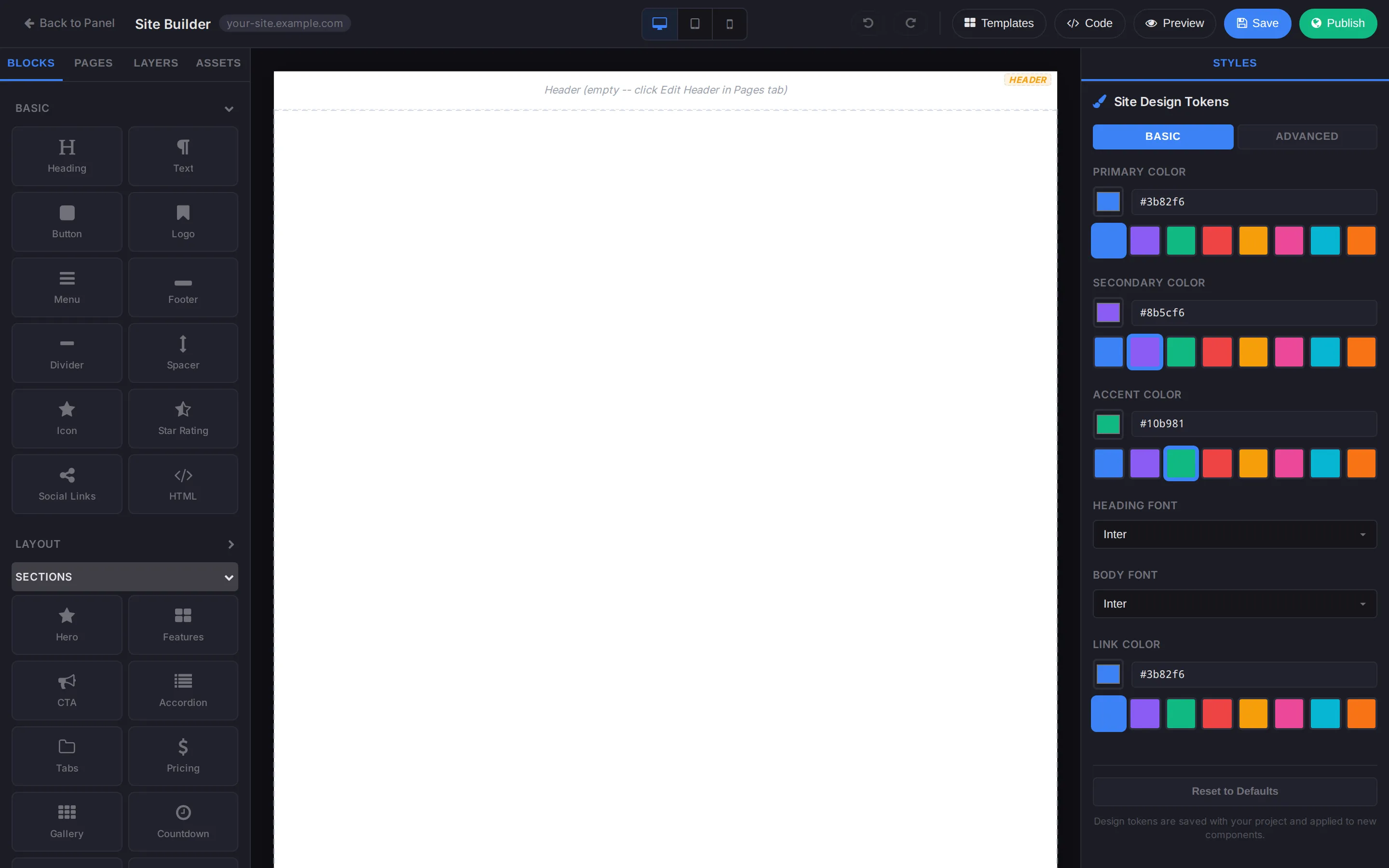
Building-block primitives for any page:
- Heading — H1–H6, with the size set from the inline toolbar.
- Text — paragraph copy. Supports bold, italic, links, and lists.
- Button — call-to-action with label, link, and style.
- Logo — drop in your site logo from Assets.
- Menu — the site’s main navigation (most commonly placed in the Header).
- Footer — quick footer wrapper (or use the dedicated Footer editor; see below).
- Divider — horizontal rule.
- Spacer — adjustable vertical whitespace.
- Icon — pick from a built-in icon set.
- Star Rating — five-star widget for reviews.
- Social Links — links to your social profiles with icons.
- HTML — drop in raw HTML when nothing else fits.
Layout
Section titled “Layout”Structural blocks that hold other blocks:
- Section — a full-width strip of the page.
- Container — a centered, max-width wrapper.
- 1 / 2 / 3 / 4 / 5 / 6 Columns — pre-set column rows.
- Sidebar Left / Right — content area with a sidebar.
Sections
Section titled “Sections”Pre-composed page sections — Hero, Features, CTA, Accordion, Tabs, Pricing, Gallery, Countdown, and more. Drop one in and edit the placeholder content.
Image, video, audio, and gallery blocks. Uploaded files live in the Assets panel and can be re-used across pages.
Contact form, newsletter signup, and similar input blocks.
Editing blocks
Section titled “Editing blocks”Click a block on the canvas to select it. From there:
- Inline toolbar — quick text formatting (bold, italic, link, alignment).
- Right panel — block-specific settings (colour, padding, link, size, alt text, etc.).
- Layers panel (left) — see the block tree, drag to re-parent or re-order.
To delete a block, select it and press Delete on your keyboard, or use the trash control in the inline toolbar.
Most templates ship as multi-page sites. Manage pages from the Pages tab.
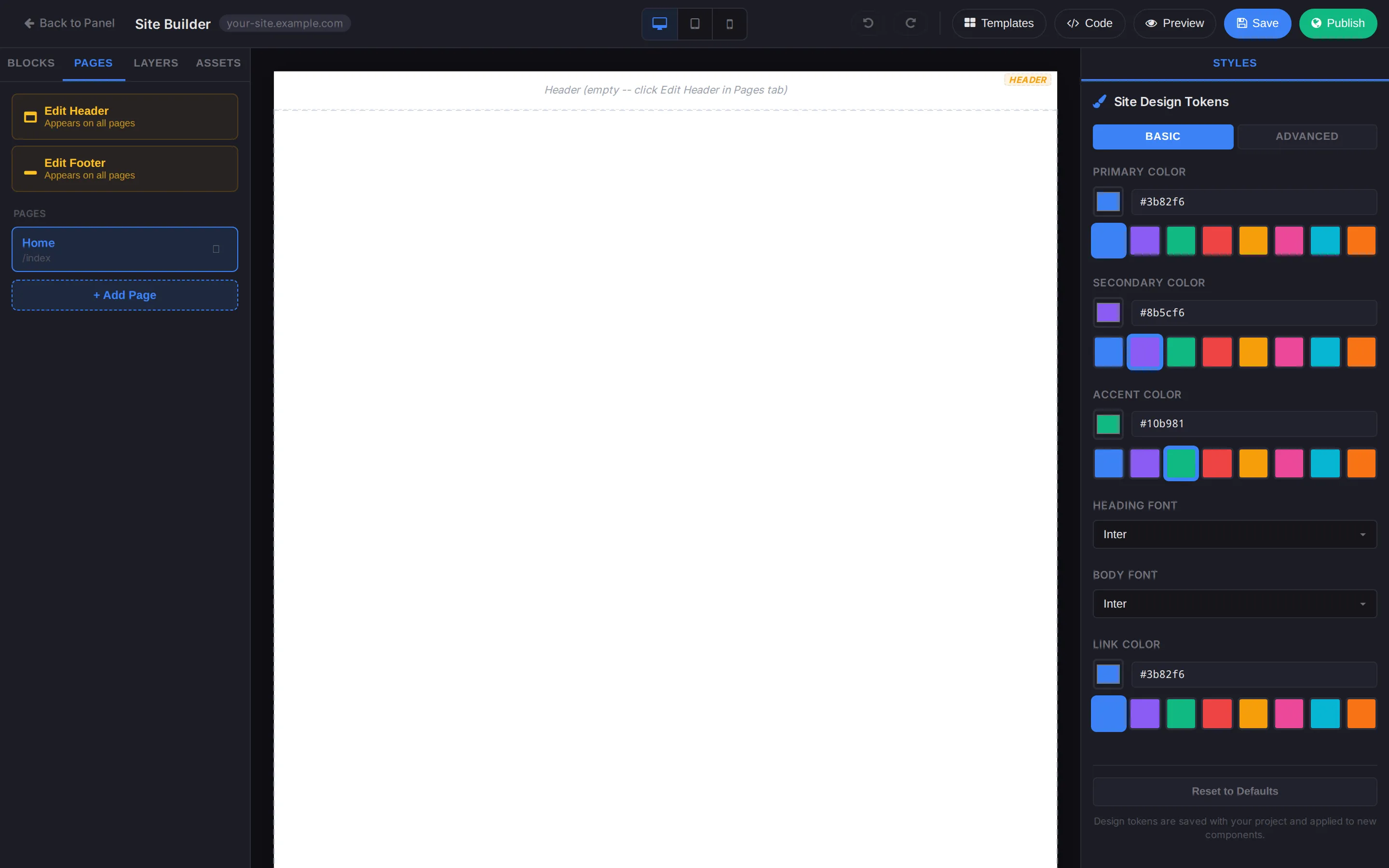
The PAGES list shows every page on the site, with its path (e.g. Home /index). The currently-edited page is highlighted.
Add a page
Section titled “Add a page”- In the Pages tab, click + Add Page.
- Give the page a name (used in navigation) and confirm the slug (used in the URL).
- The new page opens, empty, ready for blocks.
Edit the shared header
Section titled “Edit the shared header”The Edit Header button at the top of the Pages tab opens the header in isolation. Whatever you put there appears on every page. The same applies to Edit Footer.
This is the right place to drop your Menu, Logo, and Social Links blocks — once, instead of once per page.
Reorder or delete pages
Section titled “Reorder or delete pages”Click a page in the list to edit it. The menu beside the page name lets you rename, change the slug, duplicate, or delete. Deleting a page removes it from the site on the next publish.
Layers panel
Section titled “Layers panel”The Layers tab on the left shows the block tree for the current page — useful when blocks are nested inside containers and clicking on the canvas keeps selecting the wrong level. Click any layer to select that block; drag a layer to re-parent it.
Assets panel
Section titled “Assets panel”The Assets tab is where uploaded images, videos, and other media live. Drag an image directly from this panel into an image block, or use the Upload button to add new files.
Related
Section titled “Related”Still stuck?
Section titled “Still stuck?”Still stuck? Open a support ticket and our team will help.