Switching your site's backend
Every WHP site runs inside a container. The container type determines the engine that serves your site: PHP, LiteSpeed, or Node.js. Most sites use a standard PHP or PHP-FPM container, which handles the vast majority of WordPress and PHP workloads well. If you’ve enabled the Optimized Webserver add-on, you also have access to LiteSpeed/OpenLiteSpeed (OLS) container types — a premium engine known for its built-in full-page cache (LSCache) and lower memory usage under traffic. If you’re deploying your own application code instead of PHP, Node.js container types are also available — see Node.js below.
Switching backends is a one-step change in the Sites editor, but it does briefly restart your container, so plan for a few seconds of downtime.
Before you start
Section titled “Before you start”- You need admin access to your WHP account.
- If you want to switch onto a LiteSpeed backend, your account must have the Optimized Webserver add-on enabled. If it isn’t, those container types won’t appear in the dropdown.
- About 2 minutes, plus a brief site restart.
Sign in to WHP
Section titled “Sign in to WHP”You can sign in to WHP two ways:
- Through your client portal (recommended). Go to https://secure.anhonesthost.com, sign in to your account, open Services → My Services, click your hosting plan, then click Login to WHP. No extra password to remember.
- Directly with your WHP credentials. Visit
https://<your-server-hostname>:8443and sign in with the WHP username and password you set up. Your server hostname is in your welcome email and on the service page in the client portal.
-
In the sidebar, click Sites.
-
Find the site you want to change and click Edit (the pencil icon next to it).
-
In the Edit Site form, locate the Container Type (or PHP Version / Backend) dropdown.
-
Select the backend you want:
- PHP or PHP-FPM options — standard shared webserver tier, suitable for most WordPress and PHP sites.
- LiteSpeed PHP options (e.g. LiteSpeed PHP 8.x) — premium OLS tier. These only appear if the Optimized Webserver add-on is active on your account.
- Node18, Node20, or Node22 — for sites running your own Node.js application code instead of PHP. See Node.js below before switching to one of these.
-
Click Save. WHP recreates the container with the new engine. Expect a brief moment of downtime (typically a few seconds) while the container restarts.
Switching onto the premium LiteSpeed backend
Section titled “Switching onto the premium LiteSpeed backend”The LiteSpeed/OpenLiteSpeed container types are part of the Optimized Webserver add-on. If you open the Container Type dropdown and don’t see any LiteSpeed options, the add-on isn’t enabled on your account yet.
To enable it:
- Visit the Optimized Webserver add-on page for details and pricing.
- Enable it from your client portal.
- Once active, the LiteSpeed PHP options will appear in the Container Type dropdown when editing any site.
Node.js
Section titled “Node.js”Node.js container types (Node18, Node20, Node22) run your own application code instead of PHP — the container starts your app the same way you would locally with npm start. They’re for React/Next.js servers, Express APIs, and other Node apps, not for WordPress or PHP sites.
A few things behave differently for Node compared to switching between PHP tiers:
- No PHP-FPM / LiteSpeed choice. Node containers bundle their own web server, so the shared-vs-standalone placement option that applies to PHP and LiteSpeed containers doesn’t apply here — you won’t see that toggle once a Node container type is selected.
- Higher minimum memory. Node containers need more headroom than PHP containers. Selecting a Node container type in the editor bumps Memory per Container up to at least 512 MB (versus 256 MB for standard PHP). If your account doesn’t have that much unused memory in its resource allowance, WHP will tell you and block the change until you free up resources or upgrade your plan.
- Optional WebSocket / real-time support. The Edit Site form has a WebSocket / real-time support checkbox alongside the Container Type field. Turn it on if your Node app holds connections open (Socket.IO, live chat, streaming) — it keeps connections alive for up to 6 hours instead of the standard 5-minute timeout. This is unrelated to the container type itself and works whether or not you just switched to Node.
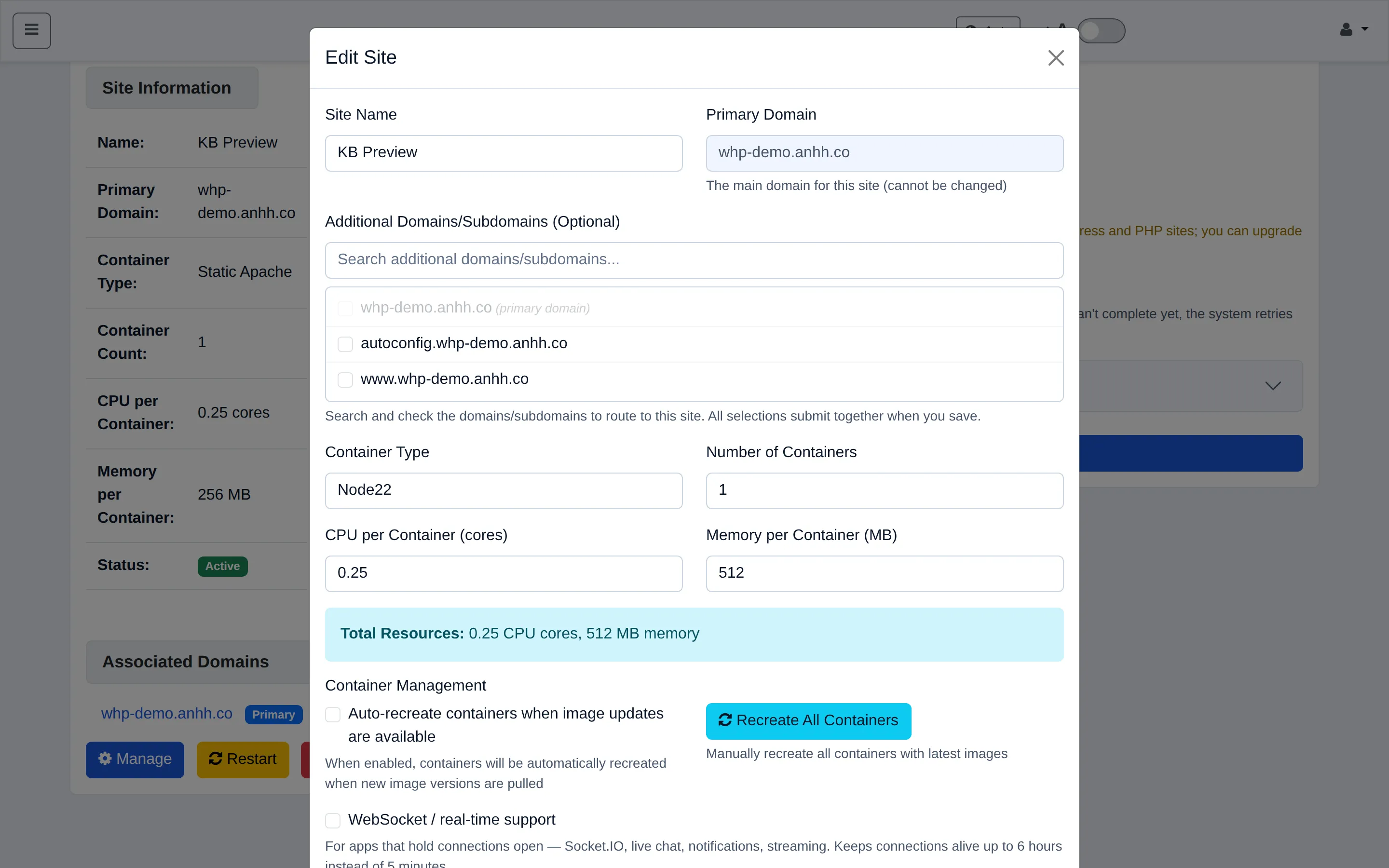
Once you’ve switched and saved, upload your app to the app/ folder for that domain via SFTP — see Create a site for the file layout and how WHP starts your app.
Before cancelling the Optimized Webserver add-on
Section titled “Before cancelling the Optimized Webserver add-on”To prepare for cancellation, switch each affected site back to a standard PHP or PHP-FPM container type:
-
In the sidebar, click Sites.
-
For each site currently on a LiteSpeed container type, click Edit.
-
Change the Container Type to a standard PHP or PHP-FPM option.
-
Click Save and wait for the container to restart before moving to the next site.
-
Repeat until no sites are on a LiteSpeed backend.
Once all sites are on standard backends, you can cancel or disable the add-on from your client portal without errors.
Troubleshooting
Section titled “Troubleshooting”LiteSpeed options don’t appear in the dropdown. The Optimized Webserver add-on is not enabled on your account. See Optimized Webserver to add it.
Site doesn’t come back up after switching. Wait 30 seconds and reload — the container may still be starting. If the site is still down after a minute, contact support.
Cancelling the add-on shows an error listing sites. Switch each listed site to a standard PHP/PHP-FPM backend first (see the steps above), then retry the cancellation.
LiteSpeed cache not serving cached pages after the switch. This is expected — the cache starts empty after every container recreation. It warms up automatically as visitors load pages.
“Your account does not have enough resources left” when selecting a Node type. Node containers need at least 512 MB of memory. Free up resources by removing or resizing another site, or upgrade your plan.
Site shows a 502 after switching to Node. Give the container 15–30 seconds to start your app. If it’s still down, confirm your app listens on the port WHP passes it via environment variable — see Create a site.
Related
Section titled “Related”Still stuck?
Section titled “Still stuck?”Still stuck? Open a support ticket and our team will help.