Server settings & services
Requires WHP super admin access. These features are unlocked for customers with a WHP super admin role on the server — for example, anyone running a Virtual Dedicated Server. Customers without super admin won’t see these pages.
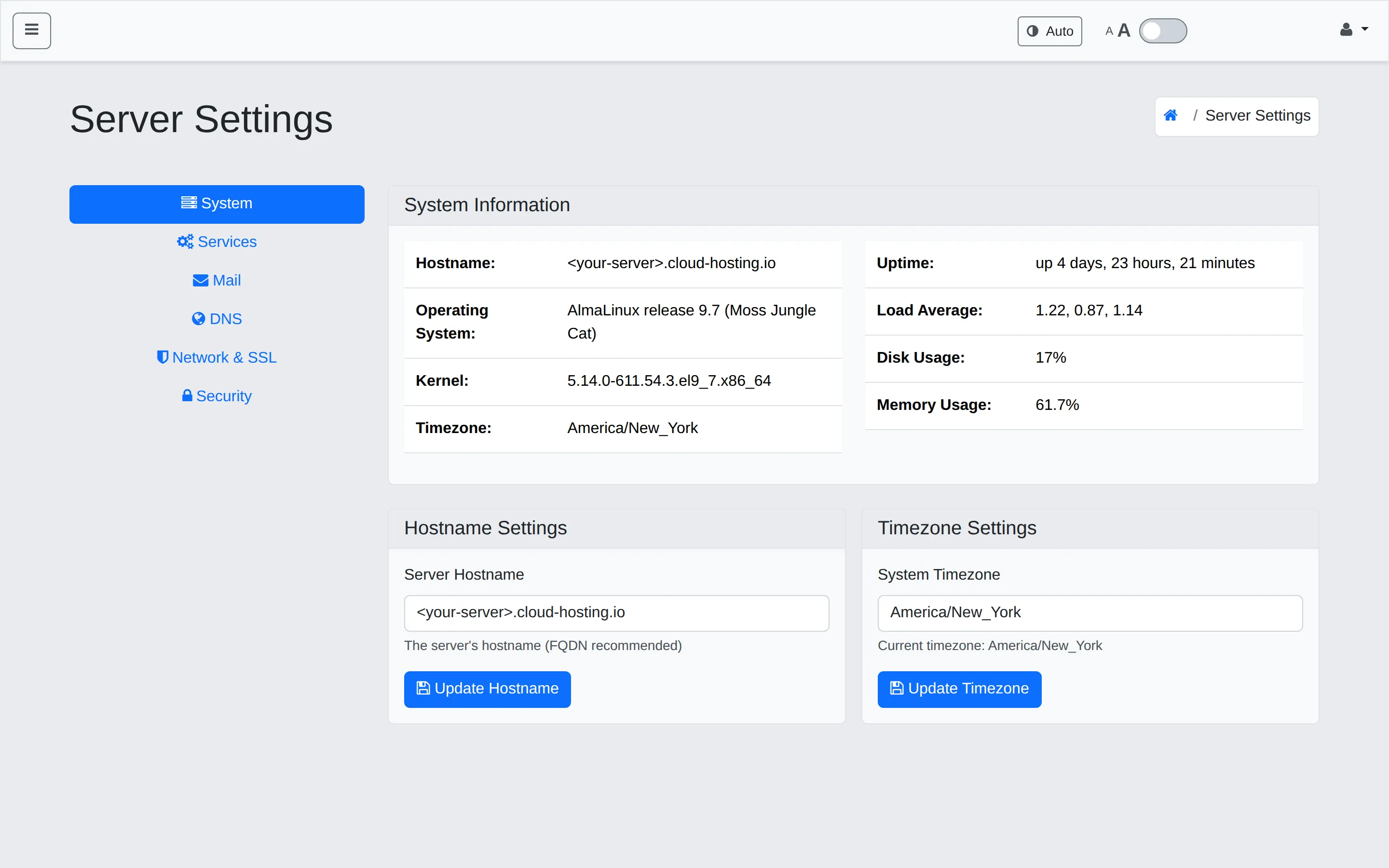
The Server Settings page lives in the admin sidebar and has six tabs along the left rail. Each tab is a different surface area of the server you can inspect or change.
Sign in as super admin
Section titled “Sign in as super admin”Super admin access is granted to the root user only. Sign in directly at https://<your-server-hostname>:8443 with the root credentials.
The WHMCS client portal route doesn’t apply for super admin — it signs you in as the linked customer, not as root.
The six tabs
Section titled “The six tabs”System
Section titled “System”Read-only system summary plus two simple change controls:
- System Information — Hostname, Operating System, Kernel, Timezone, Uptime, Load Average, Disk Usage, Memory Usage.
- Hostname Settings — change the server’s FQDN. Restart the relevant services after a hostname change.
- Timezone Settings — change the system timezone (affects cron timing, backup schedules, log timestamps).
Services
Section titled “Services”Service status and restart controls.
- Service Status — health pills for the host-side services:
- Apache and PHP-FPM on the host serve the WHP control panel itself, not customer sites. Customer sites run inside their own per-site containers, separate from these host services.
- Docker — the host’s Docker daemon. If this is down, no customer container will start.
- ProFTPD — host FTP service (used by FTP-enabled customer accounts).
- Backup Upload — the host-side uploader that streams backups to your configured backup targets.
- Restart Services — checkboxes per service plus Restart Selected Services.
- Docker Container Management — status of the core platform containers (Mysql, Haproxy manager, Memcache, Postgresql) and a per-container Execute Operation picker (e.g. restart a single container).
Two panels:
- Mail Server — set the Mail Server Hostname (used for MX records on new domains and as the IMAP host for archival). Configure the Mail Server API (URL, Username, Password) that WHP uses to provision mailboxes. Toggle Enable Mailserver API Debug Logging when troubleshooting; it writes mailserver API requests/responses to the PHP error log.
- Outbound Email (SMTP) — configure SMTP for outbound system alerts and customer AI Monitor notifications. Toggle Enable Outbound Email and provide the relay’s credentials.
Two panels:
- WHP Nameserver Configuration — set the primary and secondary nameserver hostnames and IPs. These are baked into every customer’s DNS zone, so changing them affects every domain you host.
- Network DNS Settings — set the upstream resolvers the server uses (defaults to Cloudflare
1.1.1.1and Google8.8.8.8). - DNS Configuration Settings — default TTL for new DNS records (60–86400 seconds).
Network & SSL
Section titled “Network & SSL”Operational controls for HAProxy and system-service certs:
- HAProxy Configuration Management — Regenerate (rebuild config for every active site), Reload (apply config without restart), Health Check (probe HAProxy).
- HAProxy API Key — Bearer token used to authenticate against the HAProxy Manager API. After rotating, restart the HAProxy container.
- System Service SSL Certificates — request a Let’s Encrypt cert for system-level services like the WHP panel itself and FTP, by picking the service and the domain name.
Security
Section titled “Security”API keys for external integrations like WHMCS. Not customer-facing.
- Create New API Key — Key Name, Rate Limit (requests per hour), Permissions (User Management, Resource Management, SSO Access, System Statistics, AI Monitor Management), an optional IP whitelist, and Notes.
- Existing API Keys — list of issued keys with their permissions and rate limit. Revoke by removing the row.
Server-wide configuration files
Section titled “Server-wide configuration files”The host runs the WHP control panel and orchestrates customer containers. Most customer-affecting configuration lives inside containers, not on the host. A short map:
- Control-panel Apache:
/etc/httpd/conf.d/on the host configures the WHP panel’s own Apache. Editing here changes how the panel serves; it doesn’t change how customer sites serve. - Control-panel PHP-FPM:
/etc/php-fpm.d/on the host configures the panel’s PHP. Same scope. - MySQL: the MySQL instance runs as a container. Files under
/etc/my.cnf.d/on the host are surfaced to customer database connections — they’re effectively client-facing settings, not host settings. - HAProxy: runs as a container with its own volume. Reload via the Network & SSL tab; don’t hand-edit files in the container.
Customer-side container customisation
Section titled “Customer-side container customisation”If a customer needs a non-standard runtime, library, or service inside their site’s container — that’s done by building a custom Docker image and adding it as a container type option in WHP, not by editing host-level config.
The pattern is documented in our cloud-container repos. See repo.anhonesthost.net/cloud-hosting-platform/ for the cloud-apache-container and cloud-node-container examples — they show the layout, build, and how to publish an image so it appears in the Container Type dropdown on the Sites page.
Troubleshooting
Section titled “Troubleshooting”A service won’t restart. Check journalctl -u <service> (for systemd-managed services) or docker logs <container> (for containerized ones). The most common cause is a syntax error in a config file you just edited.
Edits to a generated vhost keep disappearing. That file is generated. Put your customisation in a per-app drop-in under /etc/httpd/conf.d/, or open a ticket about adding a stable include hook.
Mailserver API debug log too noisy. Toggle Enable Mailserver API Debug Logging off on the Mail tab once you’ve finished diagnosing.
Related
Section titled “Related”Still stuck?
Section titled “Still stuck?”Still stuck? Open a support ticket and our team will help.