Manage SFTP SSH keys
SFTP normally logs in with your account password. SSH keys give you (or a teammate) a second way in — no password typing, and no need to share your password with anyone. Add one key per person, and remove any key on its own without touching anyone else’s.
Before you start
Section titled “Before you start”- An SSH key pair. If you don’t have one yet, the steps below cover generating one — it takes about a minute.
- About 5 minutes.
Sign in to WHP
Section titled “Sign in to WHP”You can sign in to WHP two ways:
- Through your client portal (recommended). Go to https://secure.anhonesthost.com, sign in to your account, open Services → My Services, click your hosting plan, then click Login to WHP. No extra password to remember.
- Directly with your WHP credentials. Visit
https://<your-server-hostname>:8443and sign in with the WHP username and password you set up. Your server hostname is in your welcome email and on the service page in the client portal.
-
In the sidebar, click Security → SFTP SSH Keys.
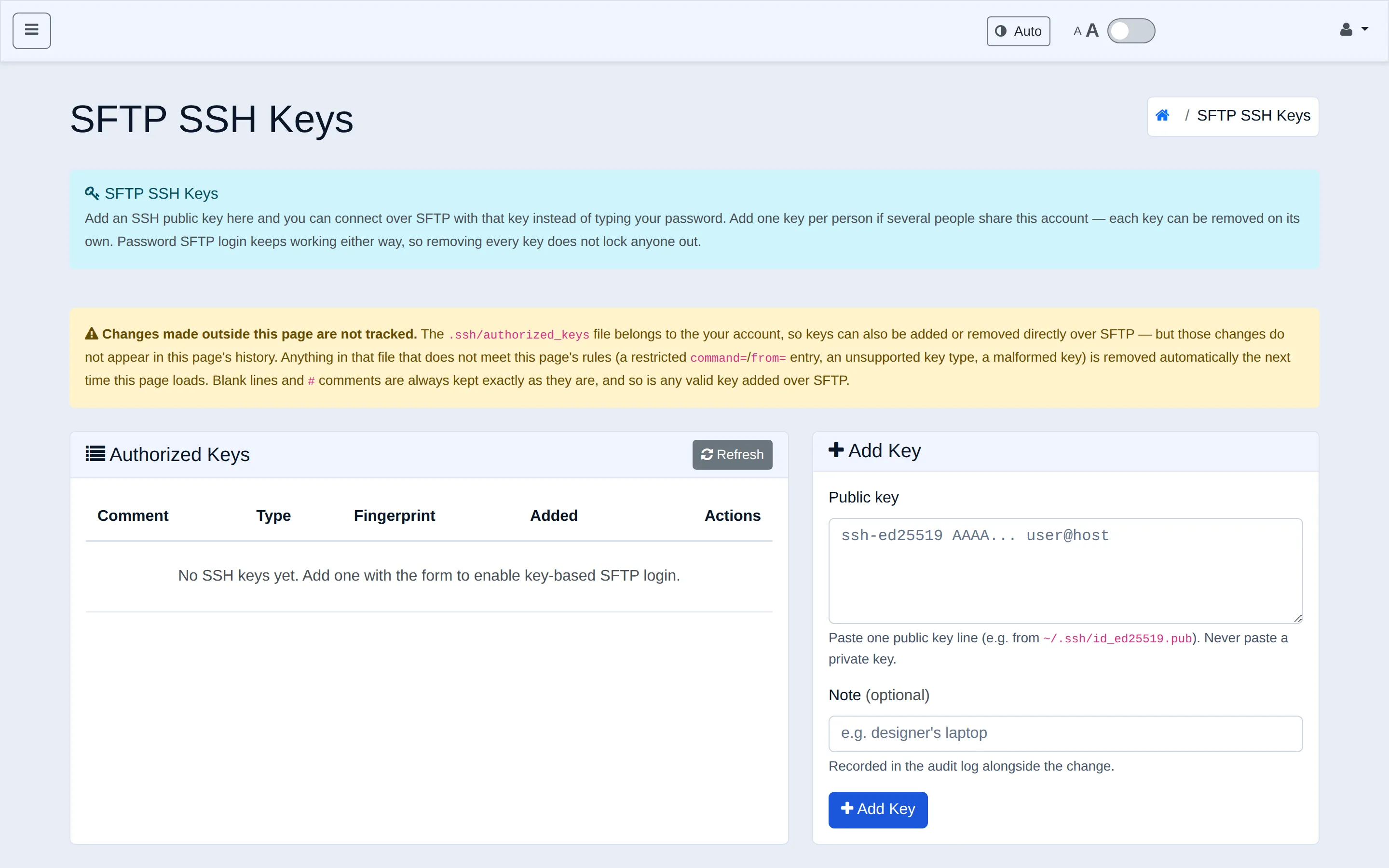
-
If you don’t already have an SSH key, generate one on your own machine:
Terminal window ssh-keygen -t ed25519 -C "your-email-or-a-note-to-yourself"Accept the default file location (
~/.ssh/id_ed25519) and set a passphrase if you’d like one. If you already have a key, you’ll find it at~/.ssh/id_ed25519.pub(or~/.ssh/id_rsa.pubfor an older RSA key). -
Copy the full contents of the
.pubfile — one line, starting with the key type (ssh-ed25519,ssh-rsa, etc.). -
Paste it into the Public key box in the Add Key card. The Note field is optional — whatever you type there is recorded in the account’s audit log, but it isn’t what shows in the key list below (see the tip after this list for how to label a key so you can actually tell it apart later).
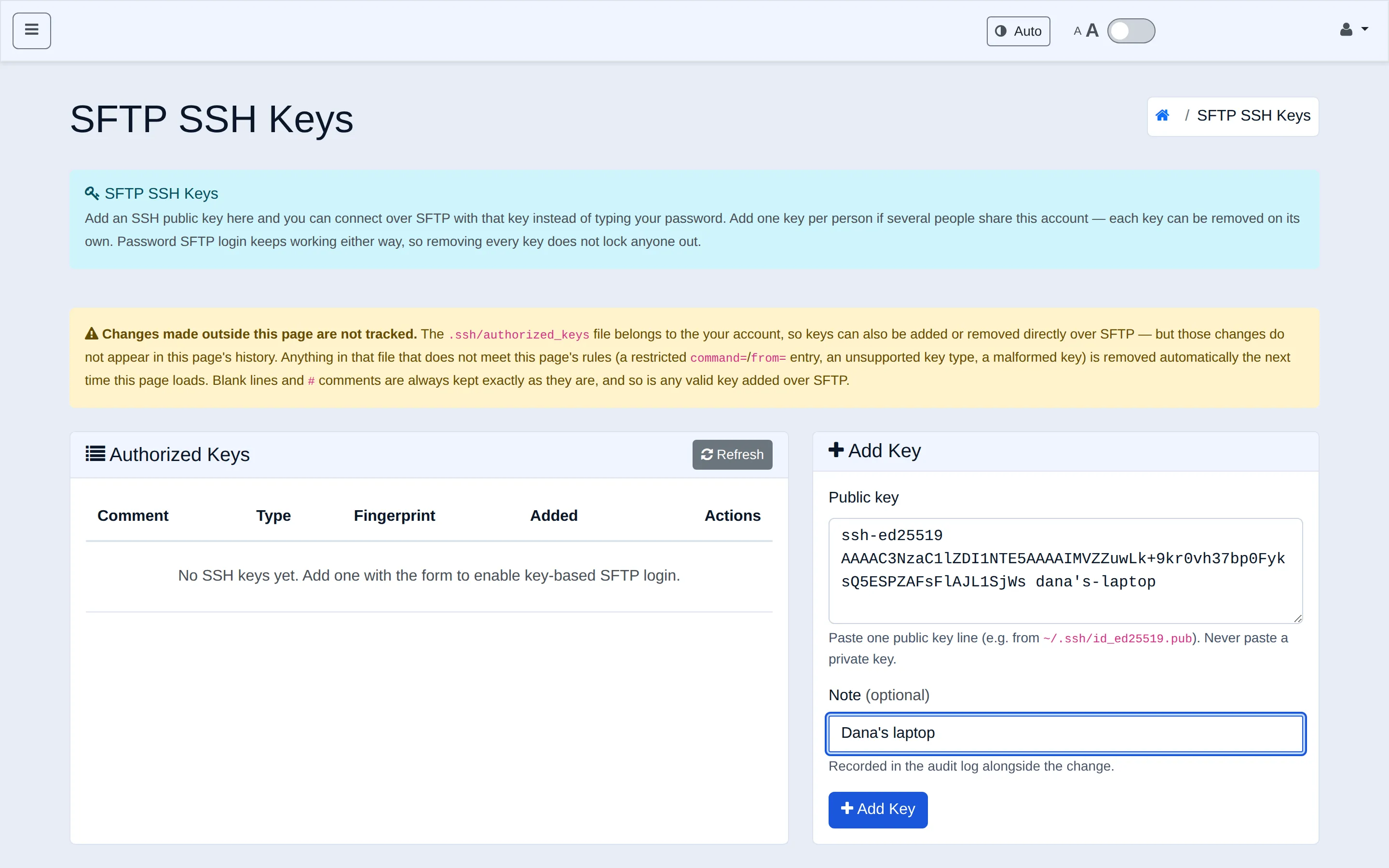
-
Click Add Key. It appears in the Authorized Keys table immediately and works right away — no separate activation step.
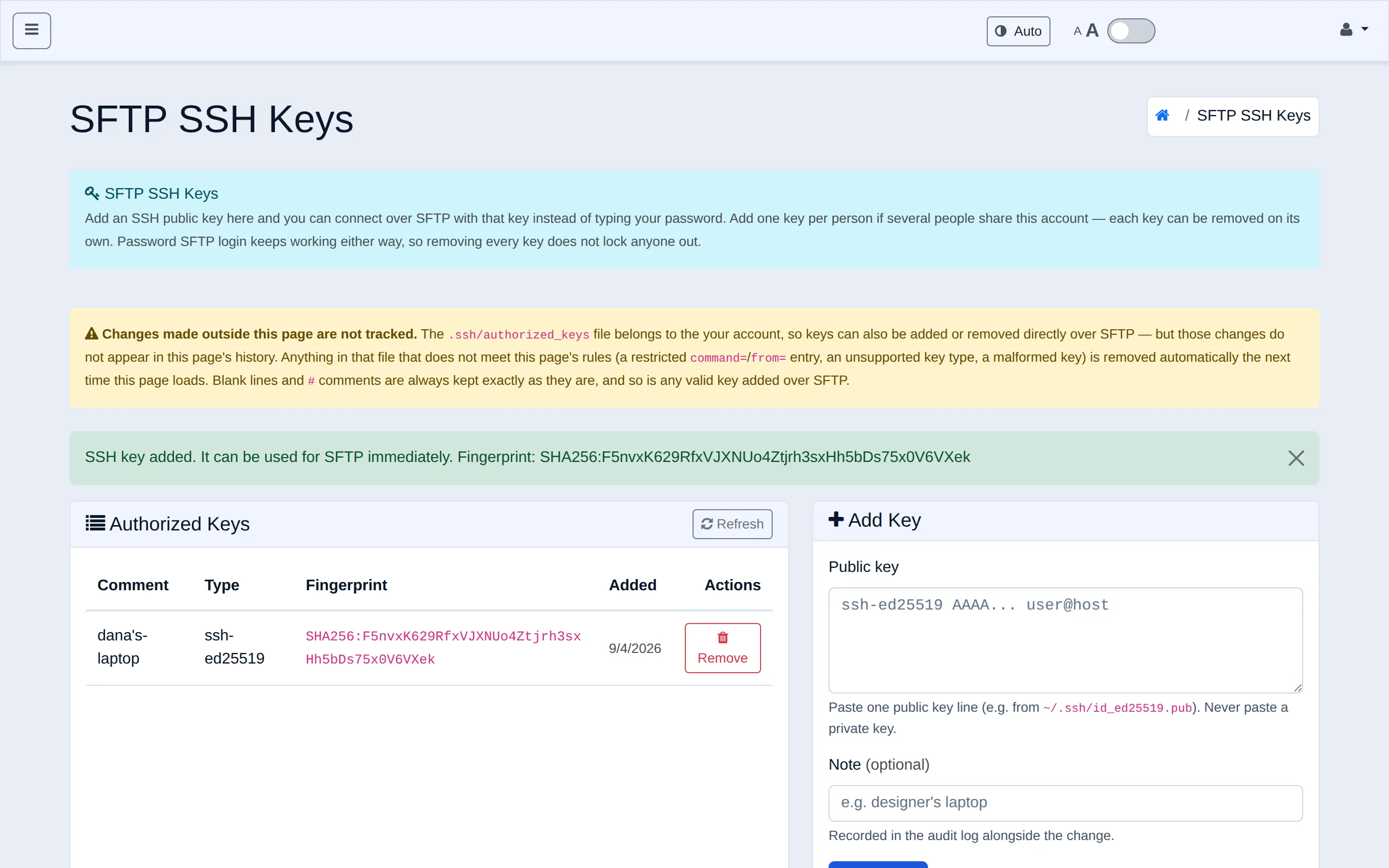
Connect over SFTP with your key
Section titled “Connect over SFTP with your key”Point your SFTP client at the private key file (the one without .pub):
sftp -i ~/.ssh/id_ed25519 <username>@<your-server>.cloud-hosting.ioReplace <username> with your WHP username and <your-server> with your server’s hostname (find it on the Dashboard page under Server Information). Graphical clients — FileZilla, Cyberduck, WinSCP — all support key-based login too: point the client’s “private key” field at ~/.ssh/id_ed25519 instead of filling in a password.
Your account password still works for SFTP exactly as before. Adding a key doesn’t disable it.
Supported key types
Section titled “Supported key types”ssh-ed25519— recommended. Generate withssh-keygen -t ed25519.ecdsa-sha2-nistp256,ecdsa-sha2-nistp384,ecdsa-sha2-nistp521ssh-rsa[email protected],[email protected]— for a FIDO/hardware security key (e.g. a YubiKey)
If a key is malformed, an unsupported type, or technically well-formed but not something the SFTP server can actually use, the panel rejects it with an explanation instead of adding it — so a key that’s been accepted is a key that works.
Remove a key
Section titled “Remove a key”Find the key in the Authorized Keys table and click Remove. Confirm in the dialog — the fingerprint and comment are shown so you can be sure you’re removing the right one. This takes effect immediately: anyone using that key loses SFTP access right away, but password login is unaffected.
There’s no restriction on removing your last key. If you remove every key on the account, SFTP still works with your account password — keys are additive, not a replacement for it.
Common reasons to remove a key: someone leaves the team, or a laptop with a key on it is lost or retired.
If you manage this account on someone else’s behalf
Section titled “If you manage this account on someone else’s behalf”Root and support staff reach the same page for any customer account — either from the same Security → SFTP SSH Keys sidebar entry (which then shows an account selector), or via a SFTP Keys button on that customer’s row on the User Management page. Everything above works the same way once an account is selected; the only difference is picking whose keys you’re managing first.
Troubleshooting
Section titled “Troubleshooting”“This key is already present.” That exact key (by fingerprint) is already on the account — check the table before adding it again.
Key added, but SFTP still asks for a password. Double-check you’re pointing your client at the matching private key file (no .pub), and that the username in your connection matches the account the key was added to.
A key I added over raw SFTP disappeared. If it didn’t meet this page’s rules (unsupported type, malformed, or carried a restricted option), it was removed the next time the page loaded — add it here instead so it’s validated and recorded properly.
Related
Section titled “Related”- Create a site — including where your files go over SFTP.
Still stuck?
Section titled “Still stuck?”Still stuck? Open a support ticket and our team will help.